
All of TM's work. One place. Done.
Every client, task, shoot and approval, with an owner, a status and a due date. Anything that waits too long raises its hand by itself.
Demo with sample data. Nothing is saved.
Why it exists
Yasmeen listed what goes wrong today. Every item is the same thing: no owner, no due date, no reminder. The system makes those impossible to skip.
- 01Client messaged, nobody replied→ Requests with owner + reply-by, flagged when late
- 02Important client ask ignored→ Same, and it rolls up to Ahmad
- 03Video finished and forgotten→ Pipeline stage with a timer
- 04Sent to client, no follow-up→ With client stage, flagged when late
- 05Revision forgotten→ Changes requested stage, note required
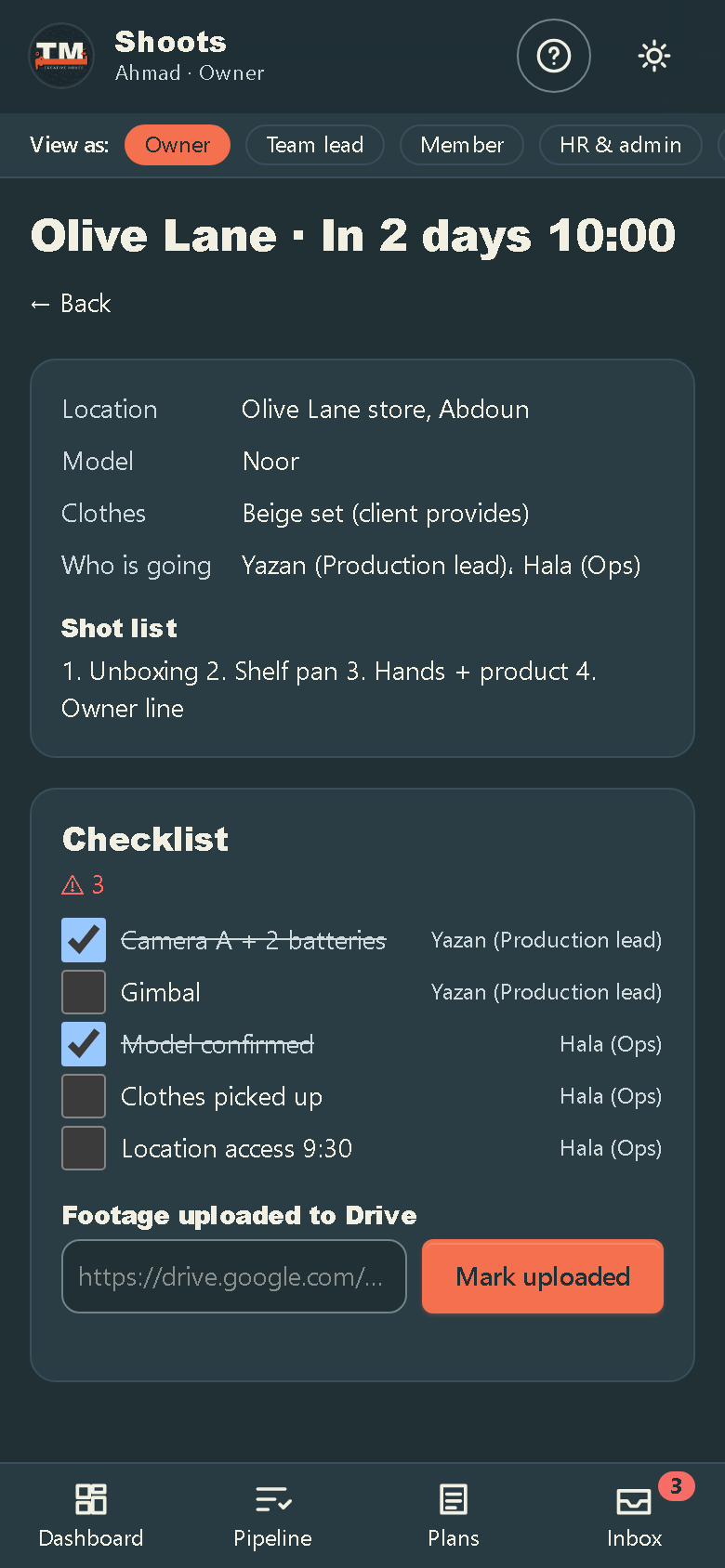
- 06Ops missing something for a shoot→ Shoot checklist must be complete
- 07Plan went out with a mistake→ Plan review before production
- 08Shot, not on the calendar→ Shoot sheets live on the calendar
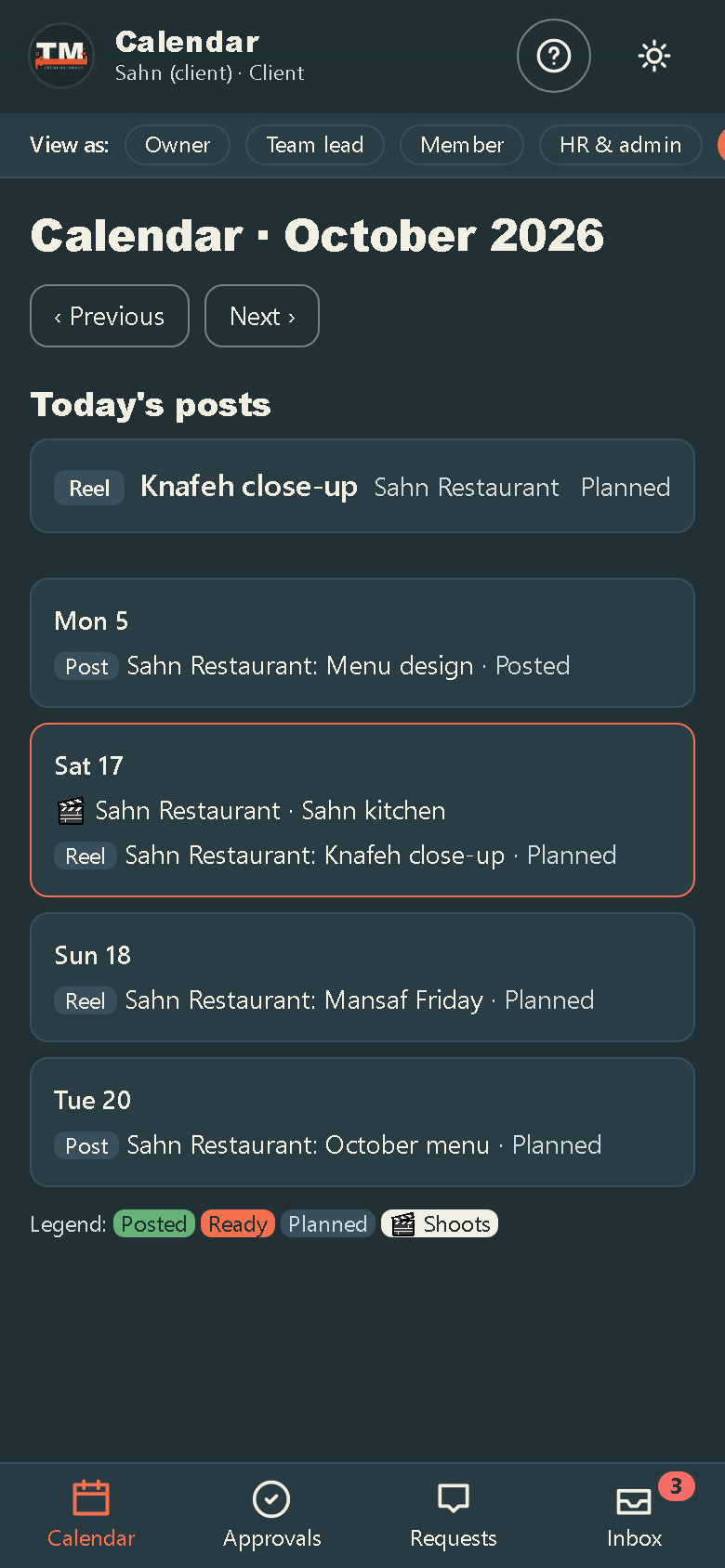
- 09Today's post forgotten→ Today's posts on every home screen
How a piece of work travels
Nothing reaches a client before Ahmad. Nothing is sent back without a note. Every wait has a limit.
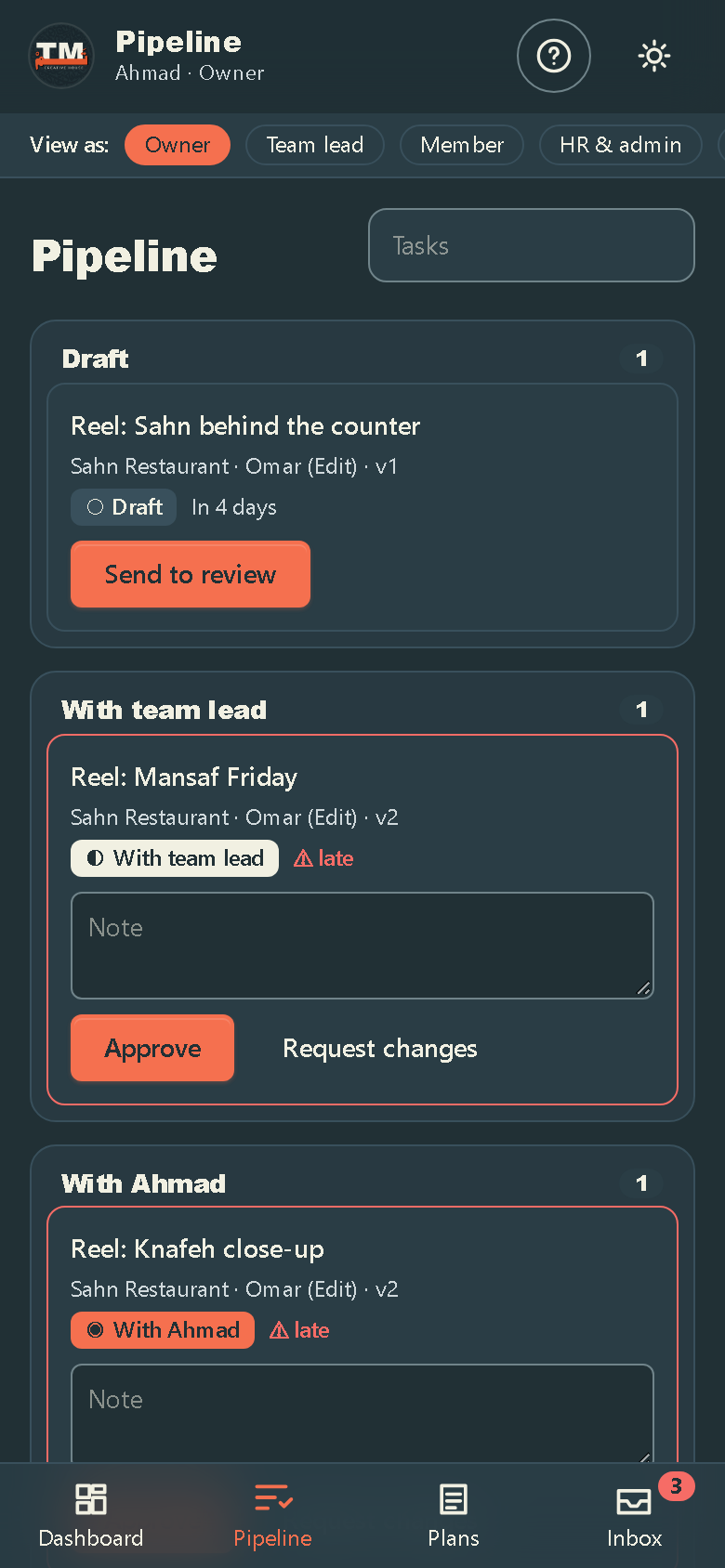
- 1Draftthe maker uploads version 1
- 2With team leadthe lead checks and sends up
- 3With Ahmadnothing reaches a client before this
- 4With clientapprove or request changes, from the phone
- 5Changes requestedgoes back with a note, never without one
- 6Approvedready for the calendar
- 7Postedmarked by social, counts toward the package
The screens
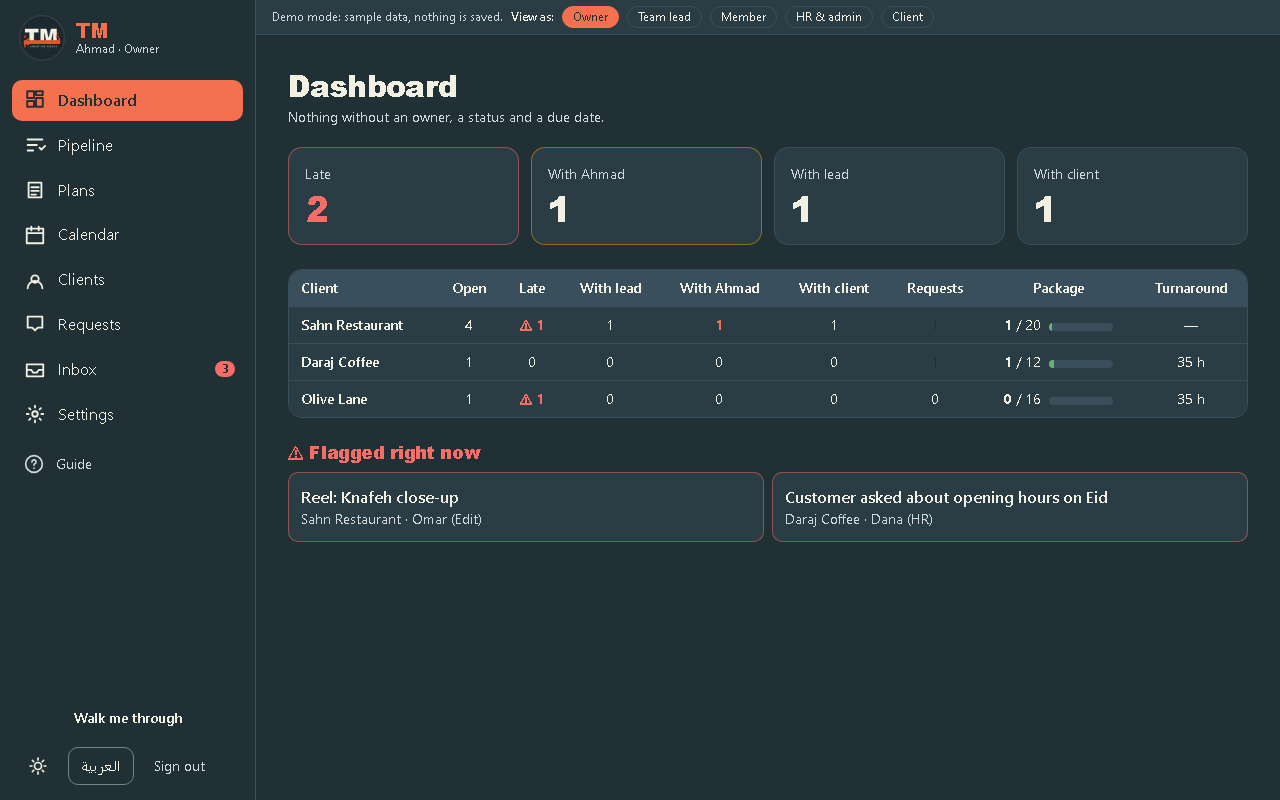
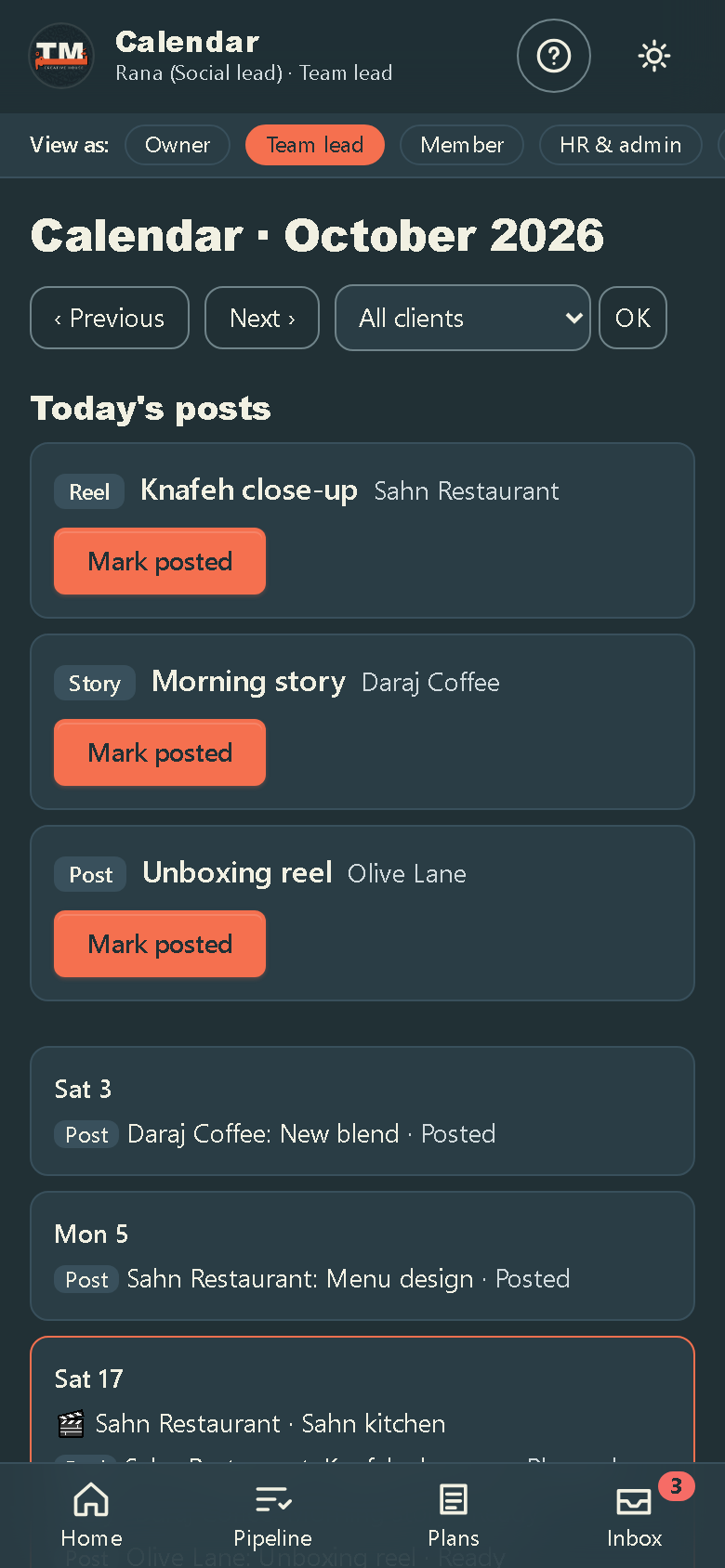
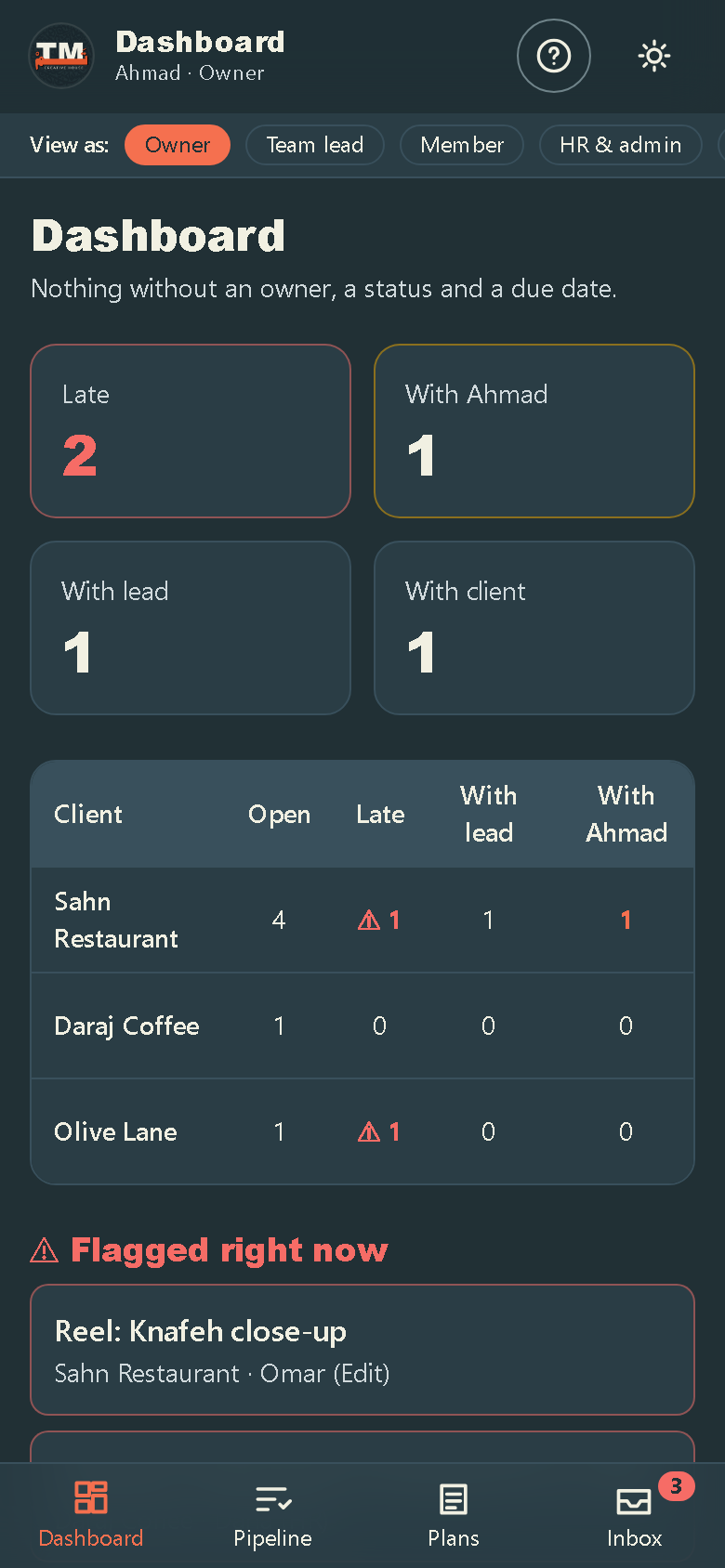
Phone first. Each role sees only what it needs.
Try it yourself
Pick a role. The walk-through starts on the first screen.
Demo with sample data. Nothing is saved.
Small things that help
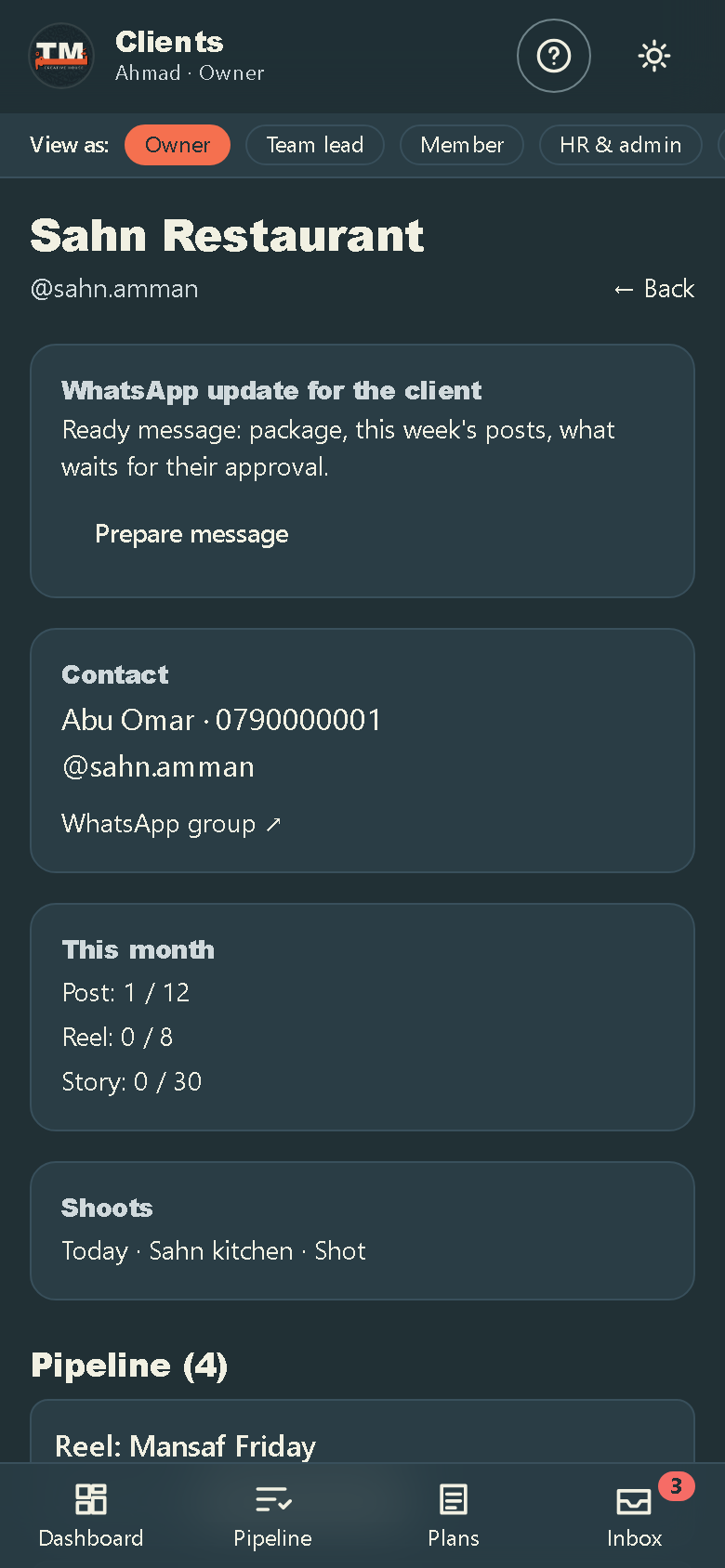
On each client's page: a ready message with this month's progress, this week's posts and what waits for their approval. Copy, or open WhatsApp with it filled in.
When something is approved or posted, a small stamp says so. A tiny reward, on brand.
A guided tour per role. Replay it any time from this page.
Install it on the home screen, turn on notifications, and the bottom bar carries the four things you use most.
Five-minute walkthrough for a call
If we present remotely: share the screen, follow this order.
- 1Open the dashboard as Ahmad
“Every client in one table. Red is late. This column is what waits on you.”
- 2Open the pipeline
“This is the chain. Nothing reaches a client before you. Send back needs a note.”
- 3Open the calendar on a phone
“Today's posts on top. Social marks posted, the package counts itself.”
- 4Open a shoot sheet
“Ops and production share one page. Not ready until the checklist is done.”
- 5Switch to the client view
“The client approves from a link, no password. WhatsApp stays for chatting.”
- 6Open a client page
“One tap: a WhatsApp update with this month's progress, ready to send.”
What we need from TM to go live
- Logo vector files (every version in the guideline)
- Instagram handle, phone, legal name
- A screenshot of a real Trello week
- Active clients and this month's packages
- Who runs ads, and how clients approve: per item or per month
Next steps
- 1You say yesWe open the accounts in TM's name.
- 2Week 1Real clients and this month's calendar go in.
- 3Week 2Pilot: Ahmad, the social lead and one editor.
- 4Week 3Everyone installs it on their phones. Clients get their links.